 繁體中文
繁體中文
 Azərbaycan
 Čeština
 English
 Español
 Français
 Ελληνικά
 हिन्दी
 Indonesia
 Italiano
 Português
 Русский (др. страны)
 Русский (Россия)
 Türkçe
 Українська
 العربية
 简体中文
简体中文
 日本語
日本語
 한국어
한국어
 Қазақ
Қазақ
To update your payment details, you must adjust the settings within the service where you originally made the purchase.
In the Google Play Store
- Open the Google Play app.
- Tap the profile icon in the top-right corner of the screen.
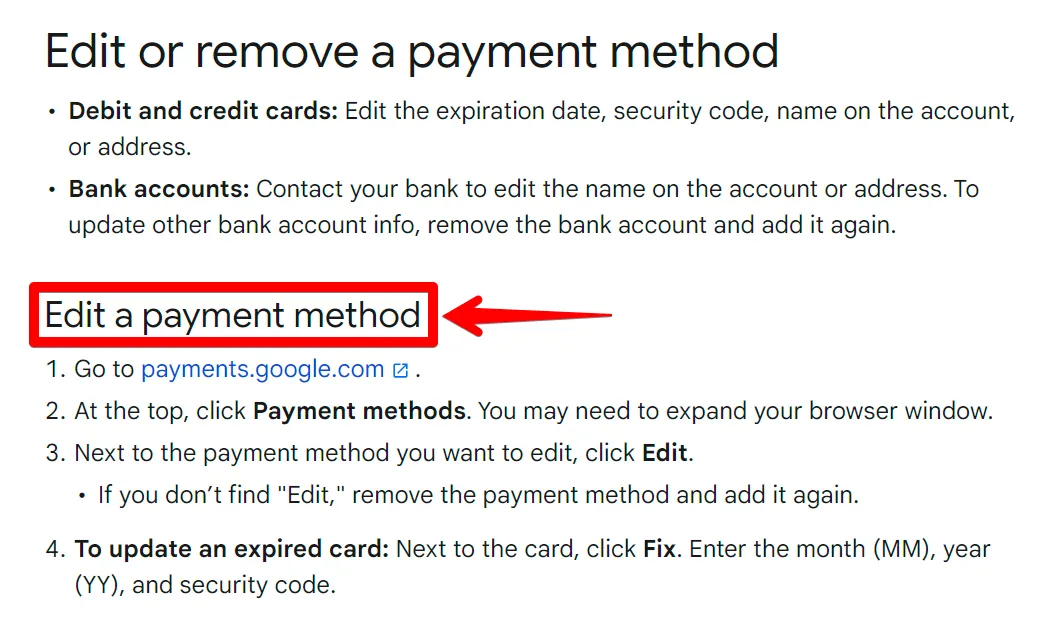
- Select Payments & subscriptions → Payment methods.
- Tap Edit. If the Edit button is not available, remove the payment method and add it again with your current details.
- To update a card, tap Fix and enter the new data.
In the WEB Dashboard on the Website
To link a new card for website subscriptions, you must set up the subscription again.
Important: If you have an active paid subscription, wait until it expires. You should only enter new card details after the current billing period has ended.
- Open the Dashboard website in your browser: app.numbuster.com.
- Log in to the site. If you authorize via a messaging app, return to the browser after confirmation instead of opening the mobile app.
- Click the Paid Features option (wallet icon) and click Disable renewal for the active subscription.
- Re-subscribe by entering your updated bank card details.
 功能
功能


 Tariffs
 說明
說明