 English
 Azərbaycan
 हिन्दी
 Indonesia
 Русский (др. страны)
 Русский (Россия)
 Türkçe
 العربية
 简体中文
简体中文
 繁體中文
繁體中文
 日本語
日本語
 한국어
한국어
 Қазақ
Қазақ
Authorization is a required step to start using NumBuster. It confirms your right to manage the phone number and ensures the secure use of all app features. This process protects your data and allows the service to accurately identify phone numbers and display the necessary information during calls.
Authorization Methods
In the NumBuster Web version, you can authorize through one of the messengers:
- Viber
- Telegram
📌 Before starting, ensure that you are already authorized in the selected messenger and have confirmed your phone number there.
How to Complete Authorization
1. Open NumBuster WebApp
Follow the official link to open the authorization page in your browser.
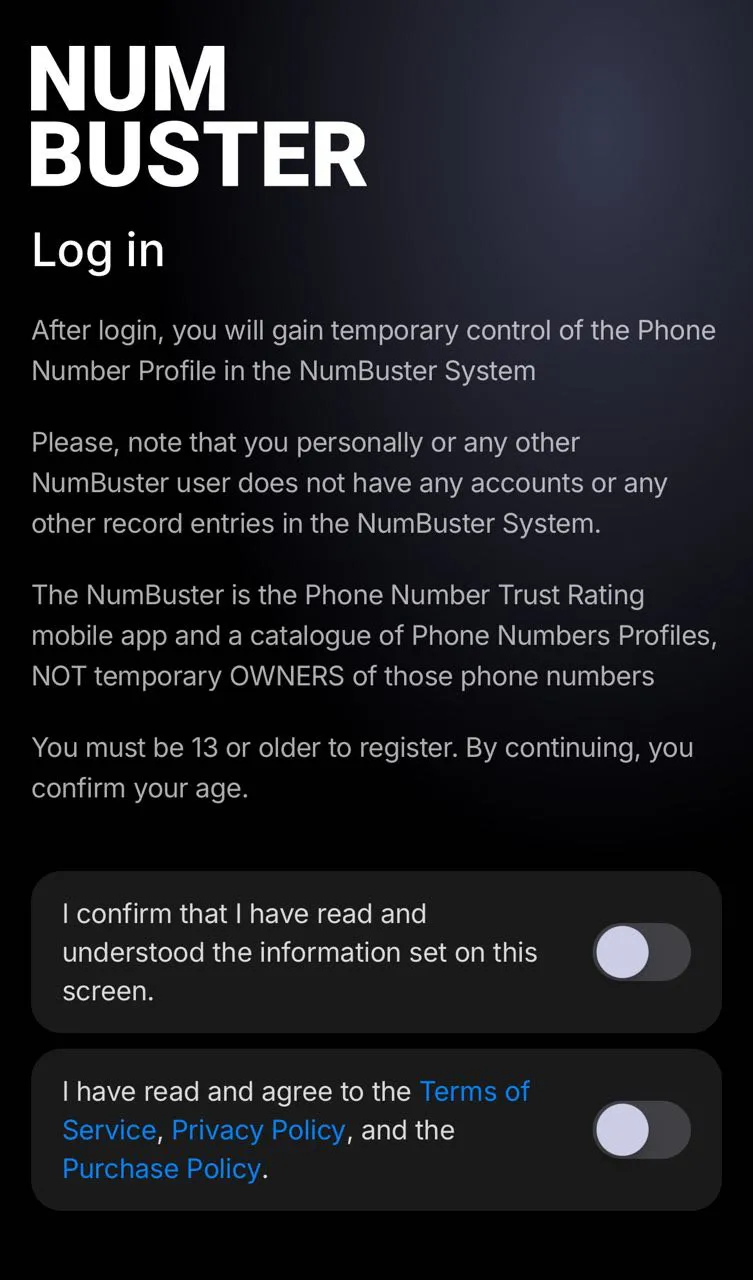
2. Review the Terms of Use
Confirm that you have read and accepted the terms.
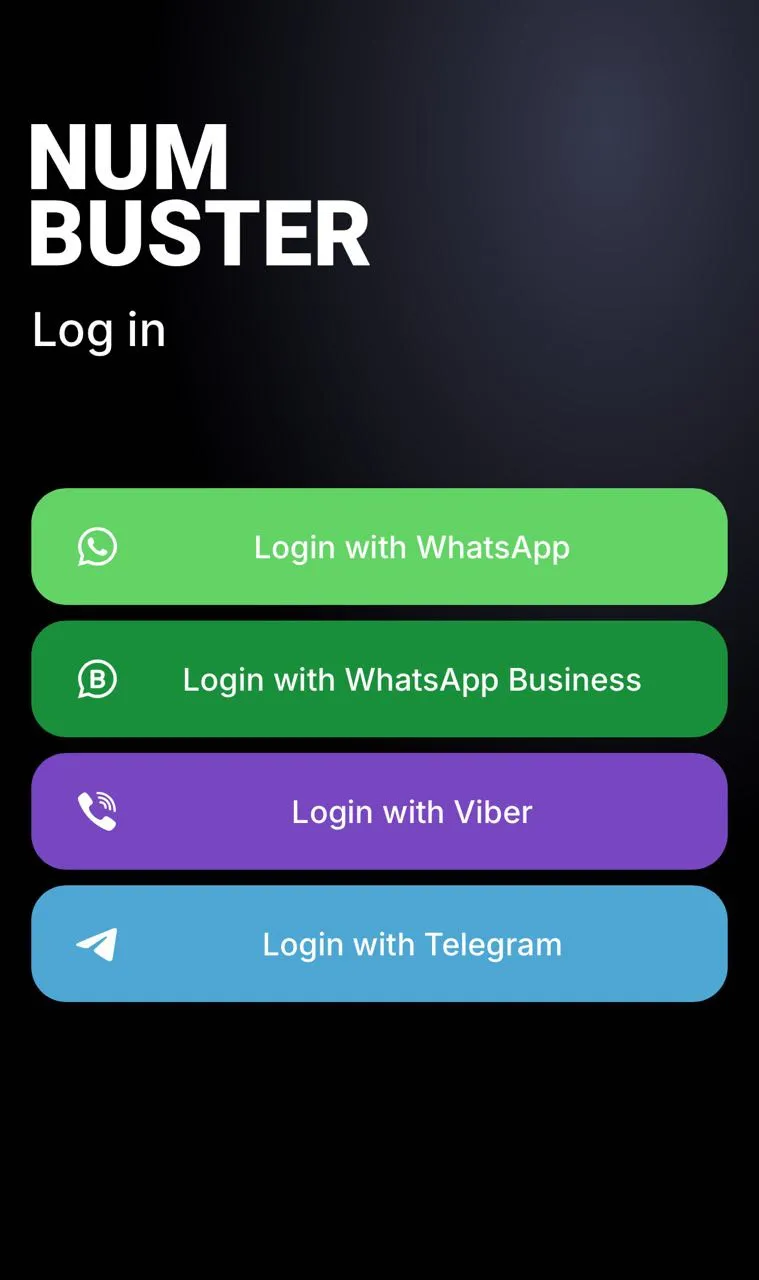
3. Select a Messenger to Verify Your Phone Number
The following options will be available on the messenger selection screen:
- Telegram
- Viber
This step is required to confirm that you are the owner of the phone number.
✅ Authorization via WhatsApp
When authorizing via WhatsApp, you will be redirected to the official NumBuster bot.
The bot will ask you to send an automatically generated message to verify your phone number. Tap the button to send it.
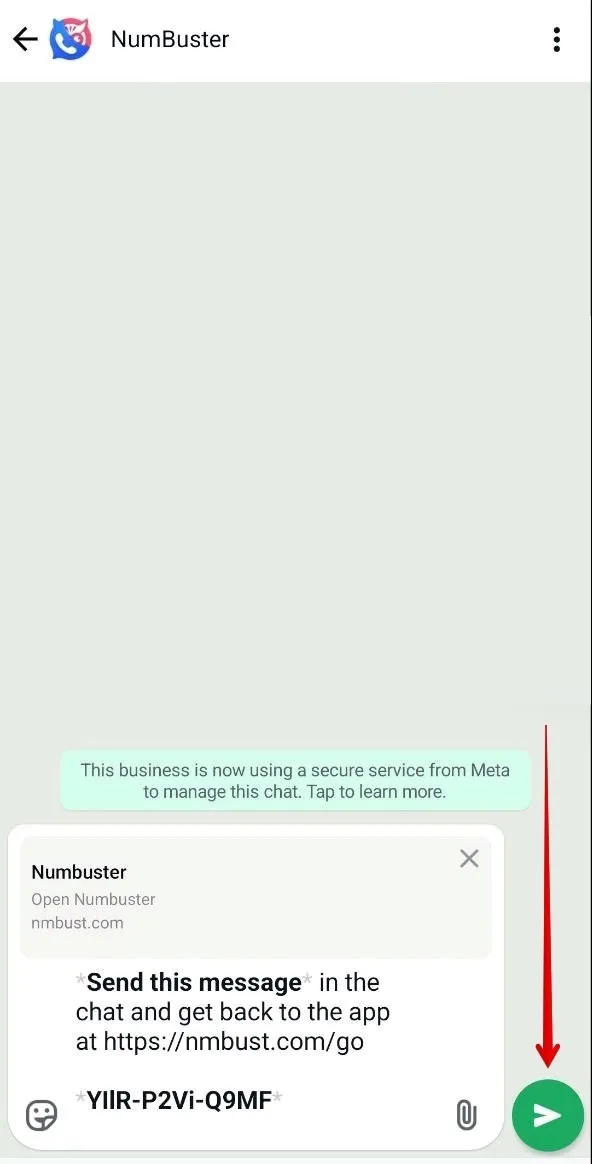
After that, return to the browser by following the link sent by the bot or switch back manually. Authorization will be complete, and you can start using the NumBuster Web version.
✅ Authorization via Telegram
When authorizing via Telegram, you will be redirected to the official NumBuster bot. The bot will ask you to confirm that you are using the specified phone number.
Tap the Continue button at the bottom of the screen to confirm your phone number.
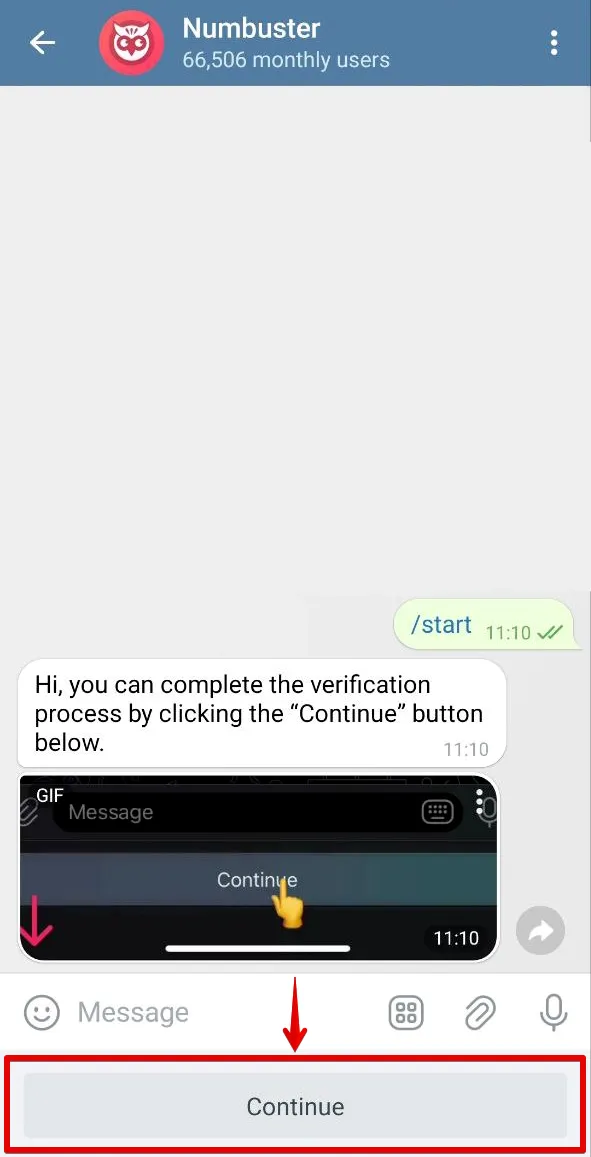
⚠️ If the Continue button is not visible, open it using the menu icon in the chat.
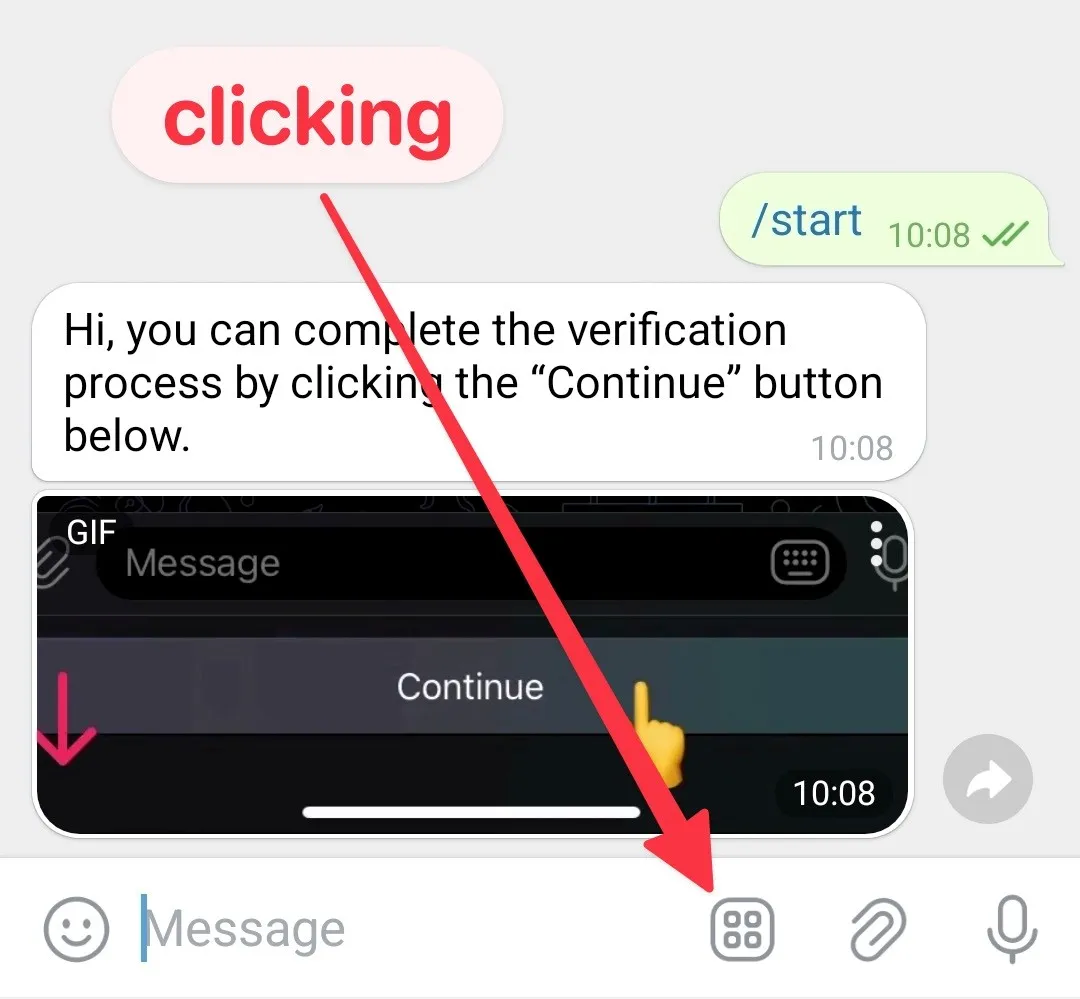
Verify the phone number and return to the app via the bot’s link or switch back manually. Authorization will then be finished, allowing you to use NumBuster.
✅ Authorization via Viber
When authorizing via Viber, you will be redirected to the official NumBuster bot.
The bot will ask you to verify your phone number by tapping Continue in the message.
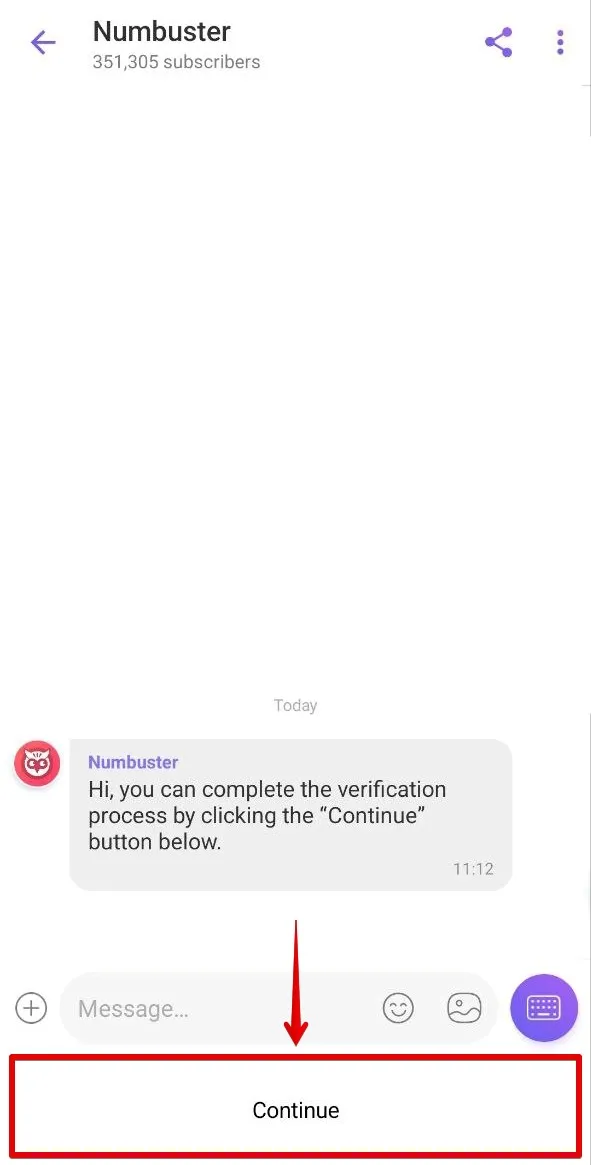
After confirmation, return to the browser by following the link sent by the bot or switch back manually. Authorization will be complete, and you can start using the NumBuster Web version.
Authorization Security
NumBuster does not access contacts, chats, or other sensitive information in your messenger. The Web version only sees the phone number, display name, nickname, and profile photo.
✅ Logout
If necessary, you can log out of your NumBuster profile.
How to Log Out
- Open the NumBuster Web version
- Find and go to section Settings
- Tap the Log out button
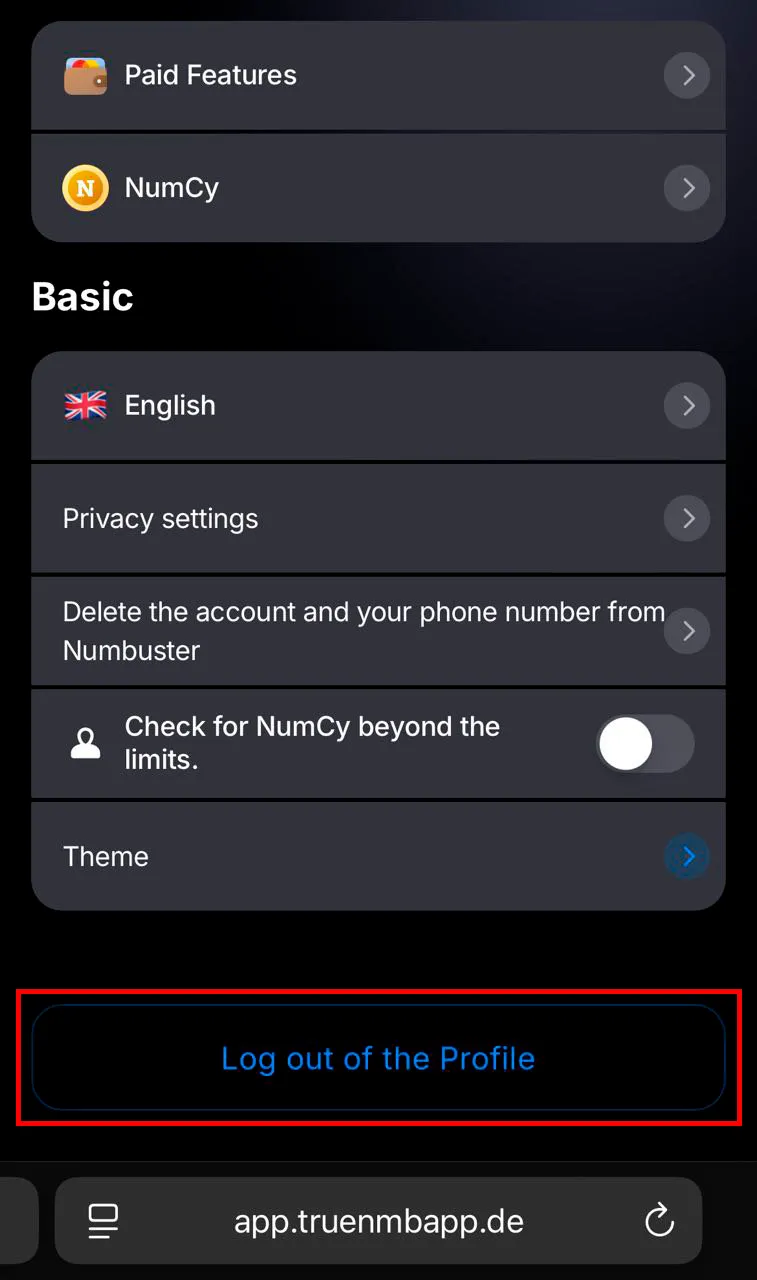
After logging out, you will need to complete the authorization process again to sign back in.
 Functions


 Tariffs
 Help
Help